

Postanovka_zada4i
Memo for the client of the "Unisim-Soft" company.
Rules for setting tasks.
For the possibility of a more complete collection of information and prompt consideration of the additions / corrections of the Client of “Unisim-Soft” company regarding the ”Una.md” program, the necessary information should be collected based on the following scheme. It should be understood that the more detailed and clearly described the task is, the less time will be spent on its implementation. Often, after setting the wrong task, the employees of the “Unisim-Soft” company have to redo all the work carried out on this task, and this, naturally, leads to irrational use of working time.
The scheme for setting up a task:
- It is necessary to determine to which block of the program the changes belong and to note this when setting the task (see "Classification of the blocks of revision").
- A complete description of the task should be given, indicating the following information:
The name of the company.
Date.
Contract number.
Name, surname of the employee of the "Unisim-Soft" company, who previously worked with the Client's enterprise.
The name of the block of revisions in the “Una.md” system.
The topic of the task (which object of development (report, form for entering and processing information, reference book) is the task focused on).
Description of the task.
Screenshot (s) with filled data (see "Creating a screenshot").
Description of development object fields. The name of the field, the type of the field (text, numeric, drop-down directory, data entry field, data calculation field (the field in which data will be calculated according to a certain formula, based on data from other fields)), mandatory filling, give a detailed description of the field (). When drafting the statement of objectives for the report.
Description of available actions (Action / F9 /). At this point, it is necessary to provide detailed information about the actions that the development object should perform, or that should be performed on the development object (examples of actions: "copy to the current line", "fill out on the basis of the document", "do not print a receipt", etc. .). When describing the action, you should indicate the data source (reference, form), or the destination where the data from the described development object should go. When specifying a directory / form, the format should be as follows: "Directories" => "Special" => "Organizations and employees" => "Personnel" => "All employees"
Description of printed forms. If you need a new form (not used before), then you should attach to the application an electronic (scanned) version of the printing form on paper, or a tabular version drawn up in Excel (). If the form is already used in the Client's program, you should indicate the SYSFID of the document, or indicate the report, or indicate the form for entering and processing information, which contains the necessary printable.
Description of transactions (transaction (s), analytics).
Transaction information must be presented in the following format:
Analytics Cost Center
Dt 2171 juice "Jaffa" 1l "Addon" SRL 102.22 lei
Ct 5211 "Addon" SRL 102.22 lei
Dt 5342 8.88 lei
Ct 5211 "Addon" SRL 8.88 lei
Specifying the node location of the development object. At this point, it is necessary to indicate to which of the nodes in the hierarchical tree the development object should be placed (for example, when developing a new document "Internal movement of goods", information should be given in the format: "Journals" => "Products" => "Move" => " Internal movement of goods ").
Specifying access rights to the development object. If nothing is specified in this item, then all users of the “Universal Accounting” system will have the rights to create, edit and view the development object. List all users / user groups that will have rights to work with this development object. The format for providing data is as follows: "Accountant" group - creating, editing, viewing.
Vasily Pupkin (id - 77) - creating, viewing.
Name of the person in charge and contact information (phone, fax, email).
It should be noted that all screenshots, tables and printed forms must be filled in with data in the format required by the Client.
Note 1: depending on the type of development object (report, form for entering and processing information, reference book), not all items may be included in the statement of the problem (for example, in the statement of the task for adding a report there will be no items 2.10 and 2.12), however, if drawing up a statement, it is necessary that all points of the scheme are reflected.
Note 2: when drawing up the statement of tasks for the report, it is necessary to use the file "" as an example, and fill in all the sheets in the format specified in the file.
Classification of rework blocks.
There are three main blocks in the Una.md system, according to which tasks for revision (changes) can be set:
- Completion of the block of the core of the ”Una.md” system. This item includes tasks related to the program interface (adding action buttons, toolbars, menu tabs, changing the location of any interface details).
- Refinement of the block of reference books and forms for entering and processing information of the "Una.md" system. This item includes tasks related to any reference books and forms of the program.
- Completion of the block of documents of the "Una.md" system. This item includes tasks associated with all documents in the program.
How to create a screenshot.
To create a screenshot - copying a screen image, you must:
- Use the built-in Windows function called when you press the PRINT SCREEN key, which takes a screenshot of the desktop as a picture and saves it to the clipboard;
- To paste the saved data from the clipboard into the “MSWord” document, use the Paste command (using the shortcut keys <CTRL + V> or from the context menu of the mouse cursor <Paste>);
- If it is necessary to use a screenshot of only the selected window, use the Alt + Print Screen command. In this case, only the active window on the desktop will be saved as a screenshot to the clipboard;
- If you need to use not the entire area of ??the captured and inserted screenshot, you need to use any graphics editor that allows you to perform the "image cropping" function, for example, Microsoft Office Picture Manager included in the standard Microsoft Office 2003 package (Fig. 1):
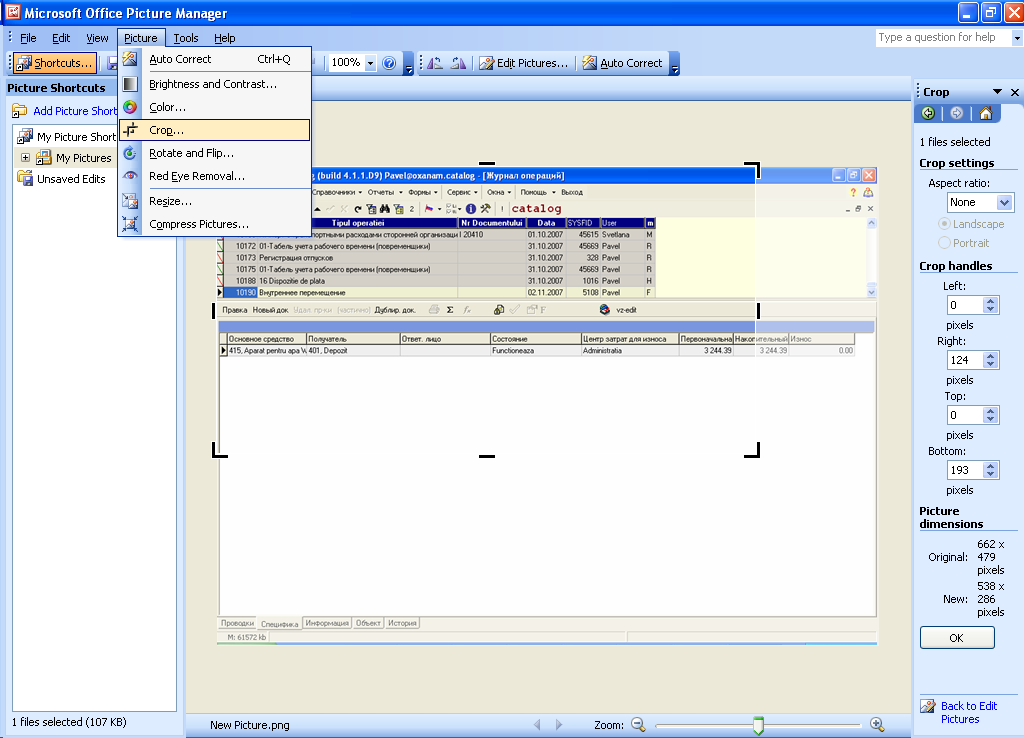
fig. 1 Microsoft Office Picture Manager window