UNA_Instant_OK12
Installing Instant Client 12
The installation and setup are divided into several stages:
Configuring regional settings
Installing and setting up Instant Client 12 and utilities required for the UNA.md application
Installing Una.md
It is important to correctly set the region and parameters.
Go to the Start menu, select Settings, and then Time & Language.
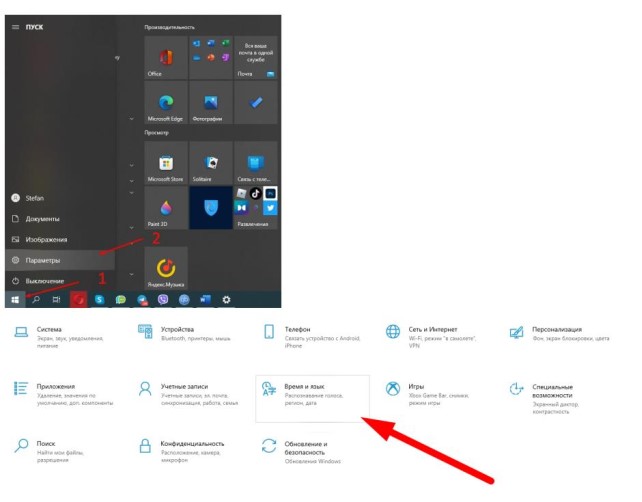
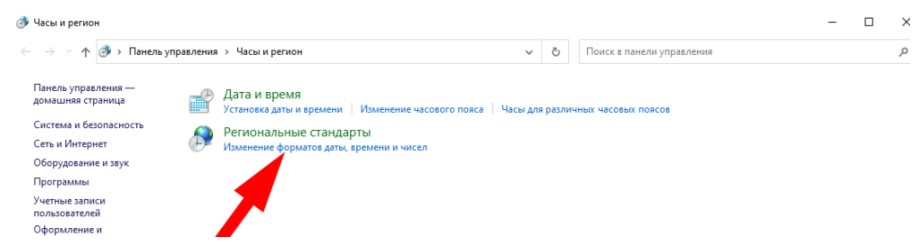
Here, select Region and make sure the country and format are set to Russia, then choose Additional settings on the right.
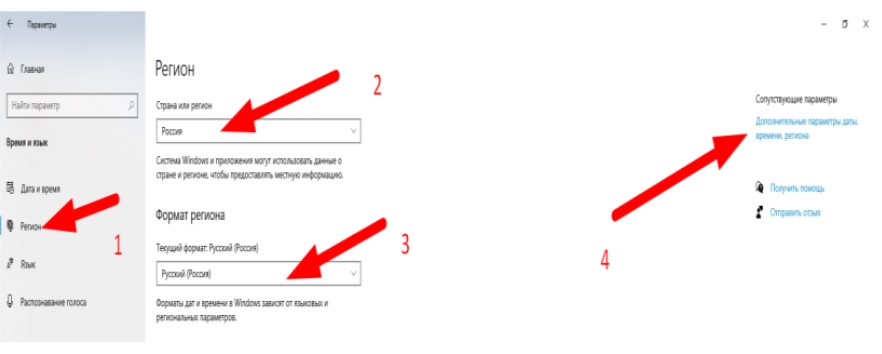
A window will open, and you need to select Change date formats.
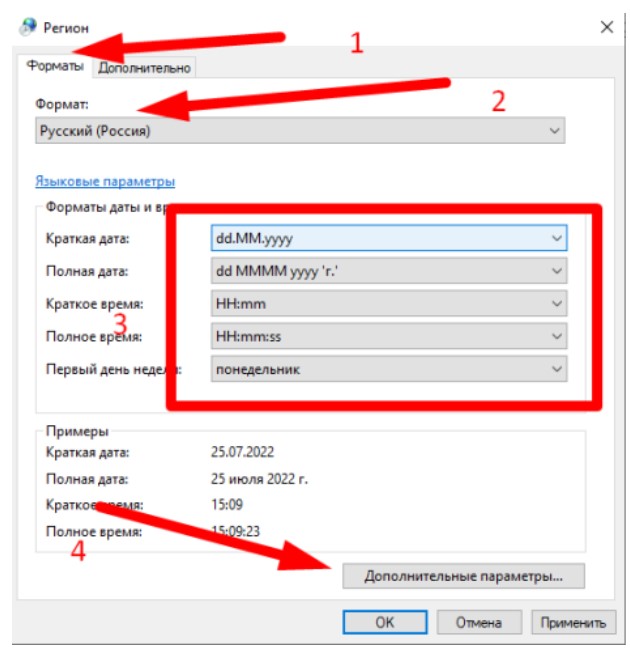
On the Formats tab, ensure the following settings are selected: Format – Russia, long date and time format, then access Additional settings.
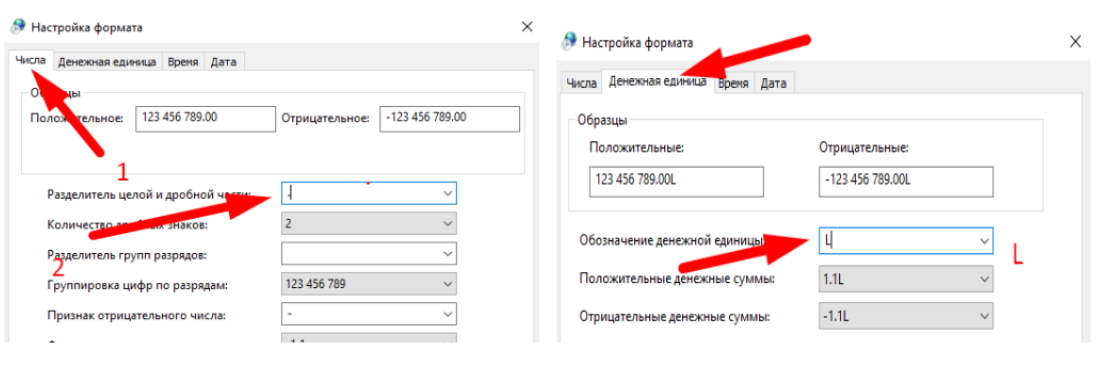
Choose the separators as follows:
Decimal separator: . (dot)
Unit price separator: L
Date and time: full form
After configuring, apply the settings.
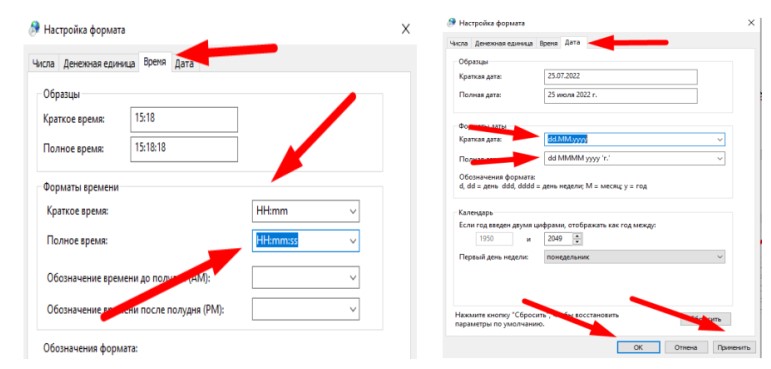
Open the additional tab; the format should be Russia. If it’s different, select Russia, then restart your computer.
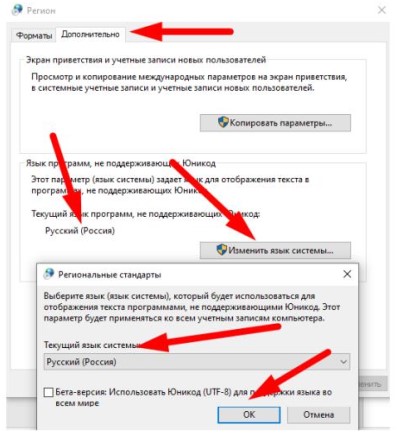
Installing and setting up Instant Client 12
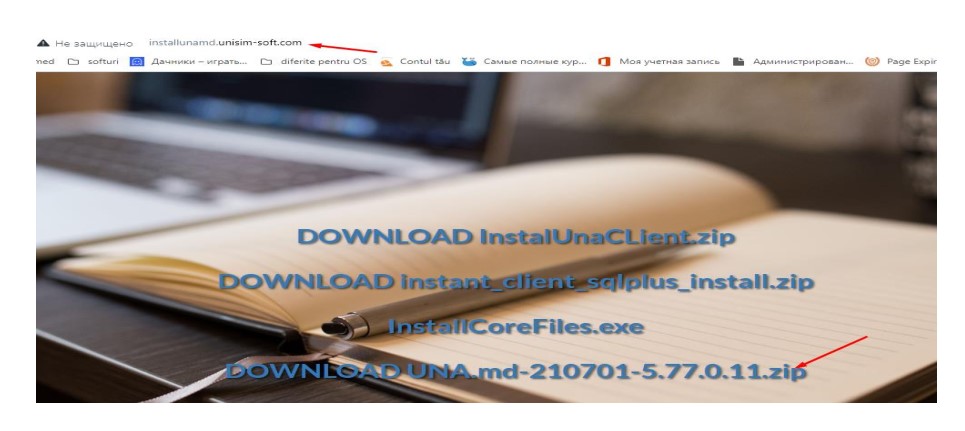
Download the files from:
https://installunamd.unisim-soft.com//InstallCoreFiles_12.exe
Extract them to a folder.
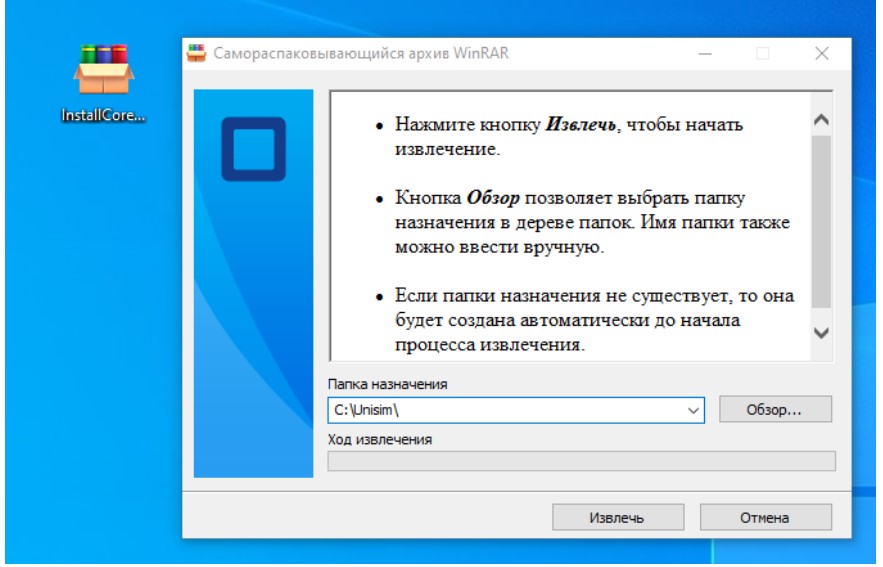
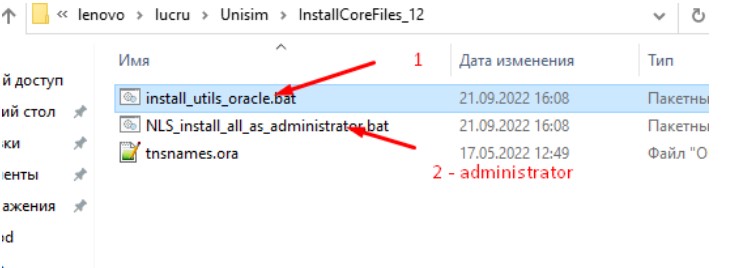
From the extracted folder, run install_all_as_administrator with administrator rights and install each utility that appears.
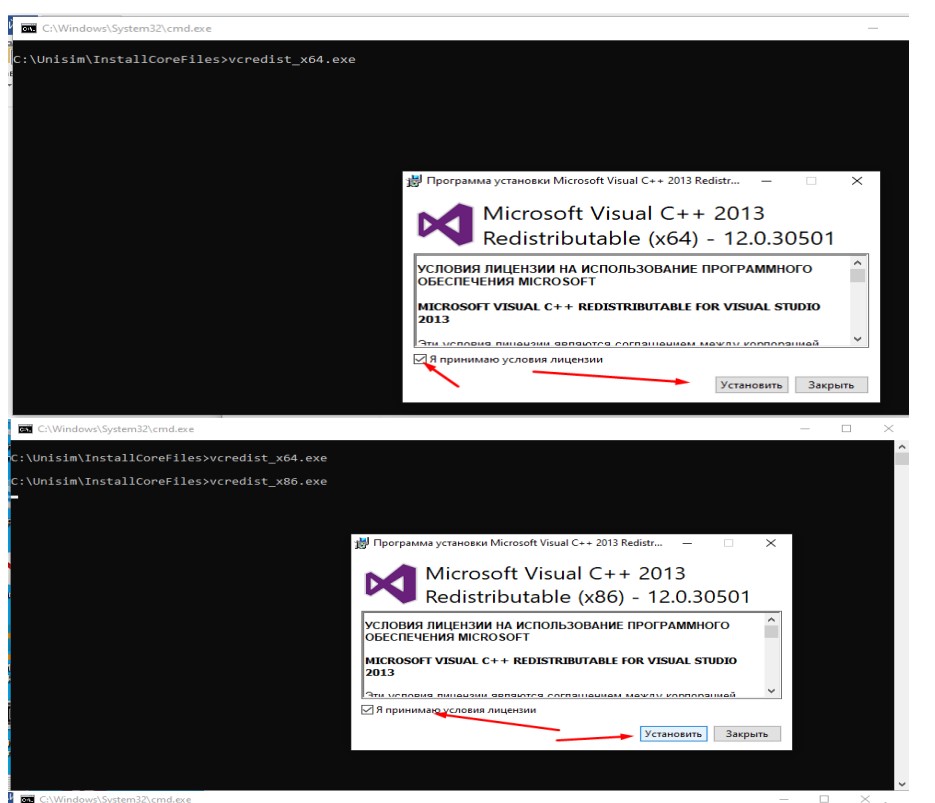
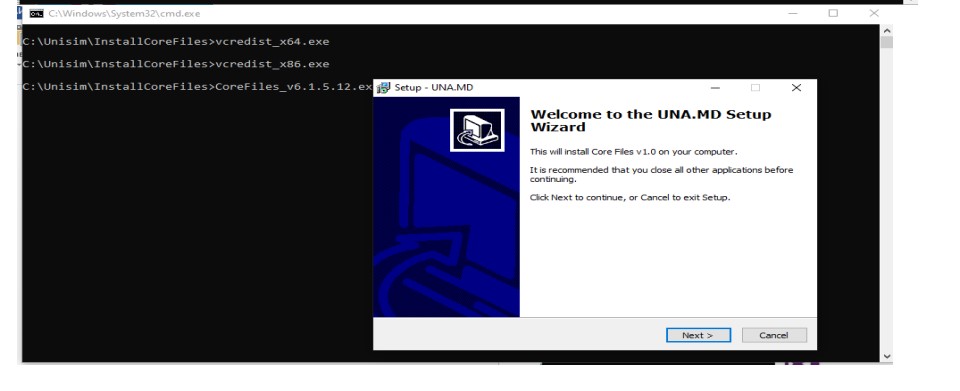
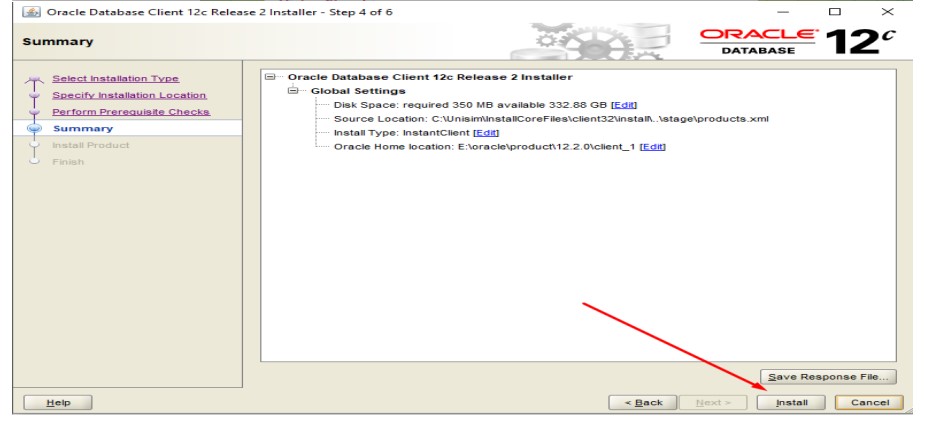
After installing the utilities, the Oracle installation will start. Choose Instant.
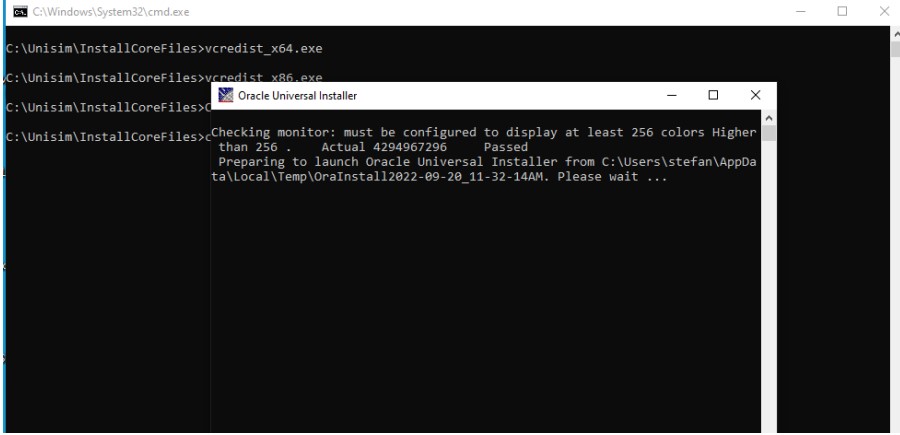
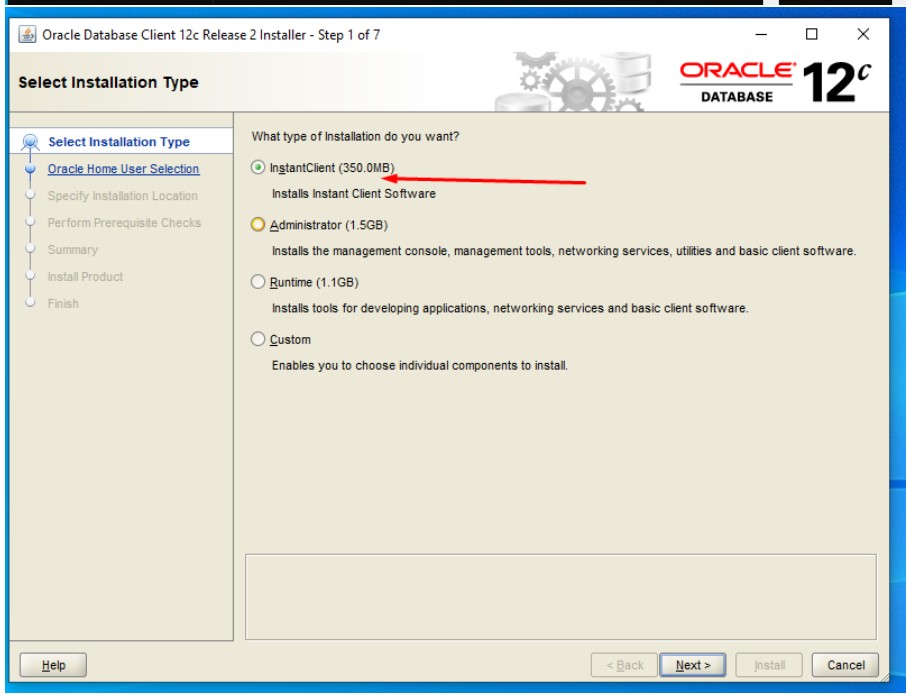
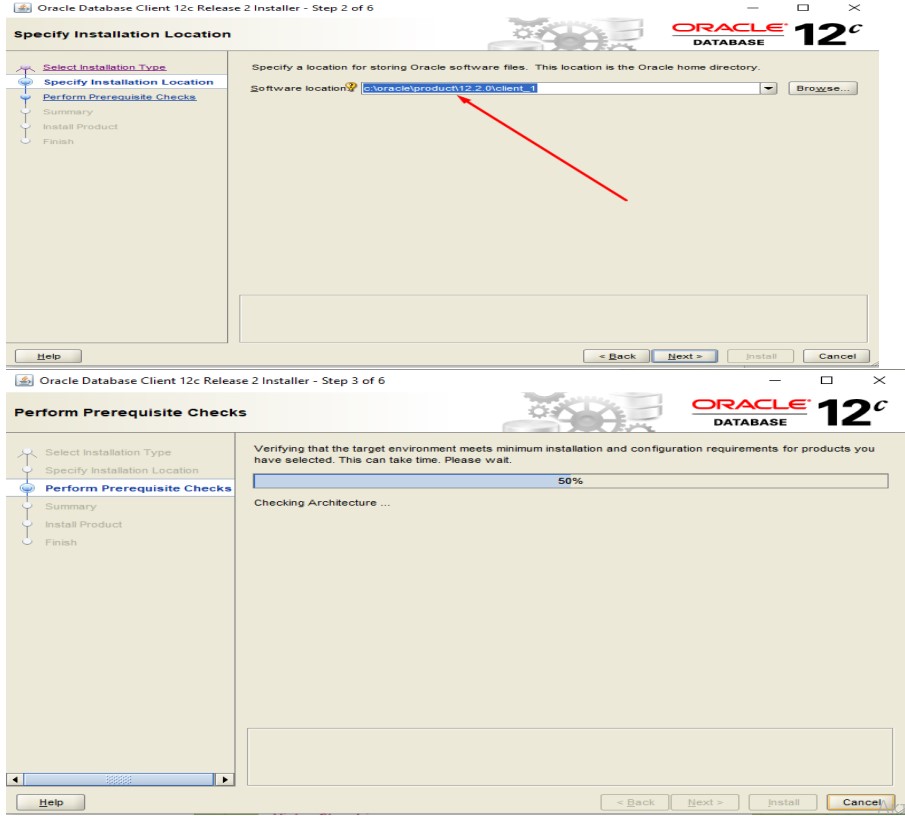
Click Next and proceed to select the installation path. It is very important to choose the correct path as shown in the
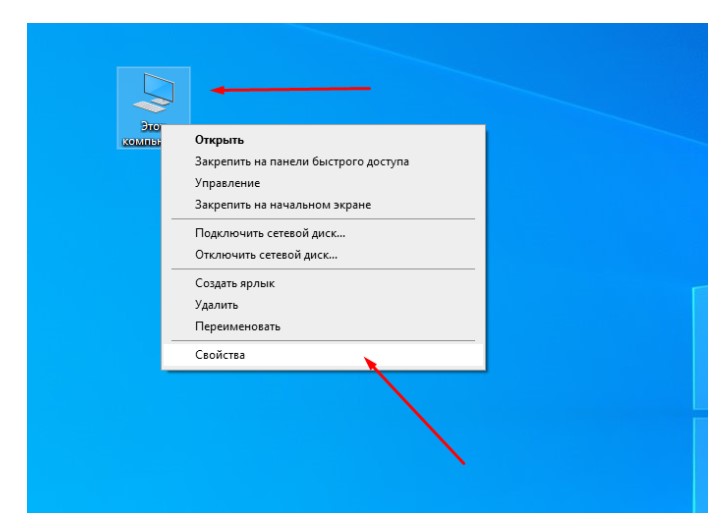
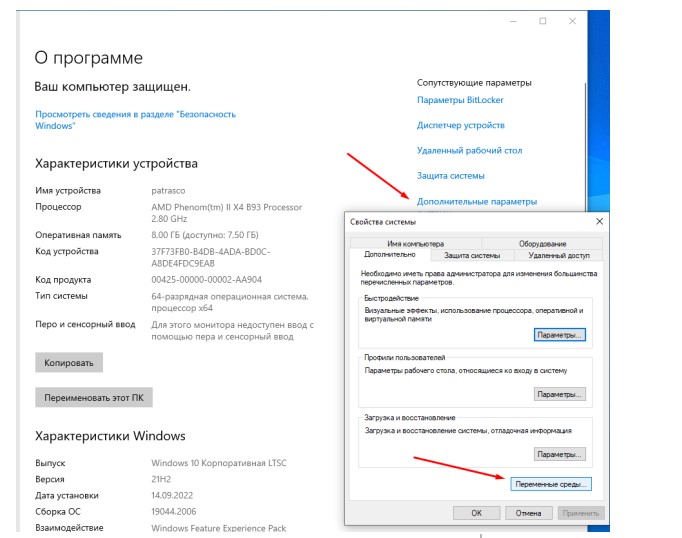
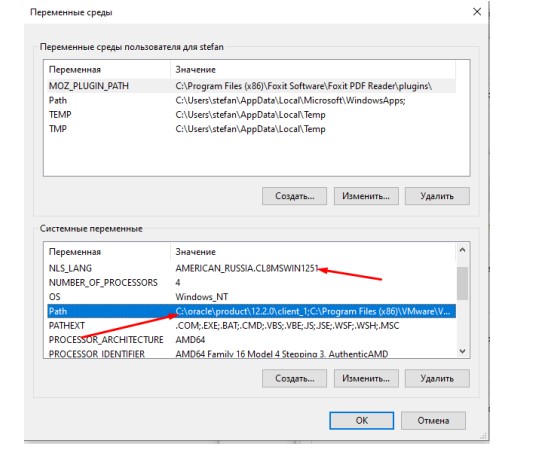
After Oracle Client 12 installation, verify that the appropriate language for the database and the required parameters are set in Environment Variables.
Once installed, open the folder with files and create a tnsnames.ora file in the folder Network\Admin\tnsnames.ora.
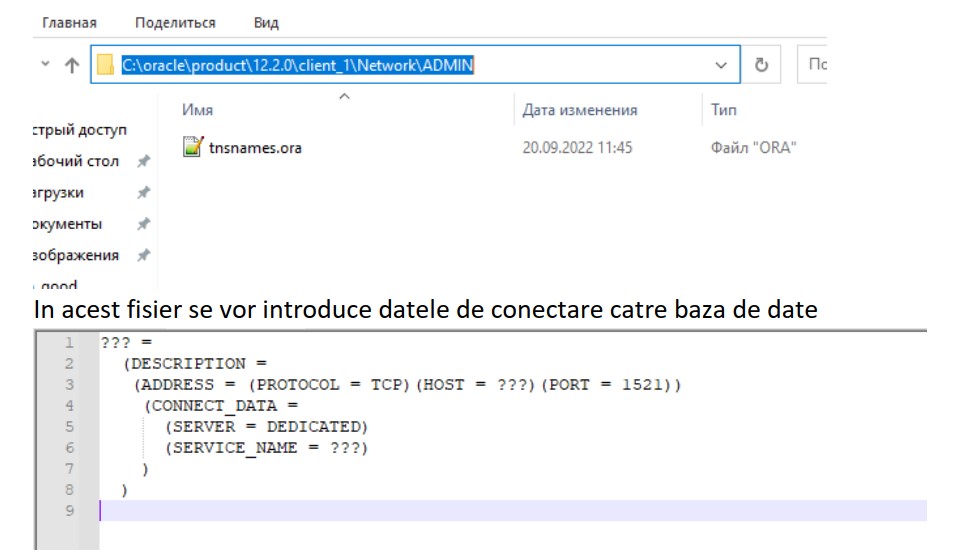
This file will contain the data for connecting to the database.
Installing Una-desktop
Download the latest version of Una-desktop from:
https://installunamd.unisim-soft.com//UNA.md-210701-5.77.0.11.zip
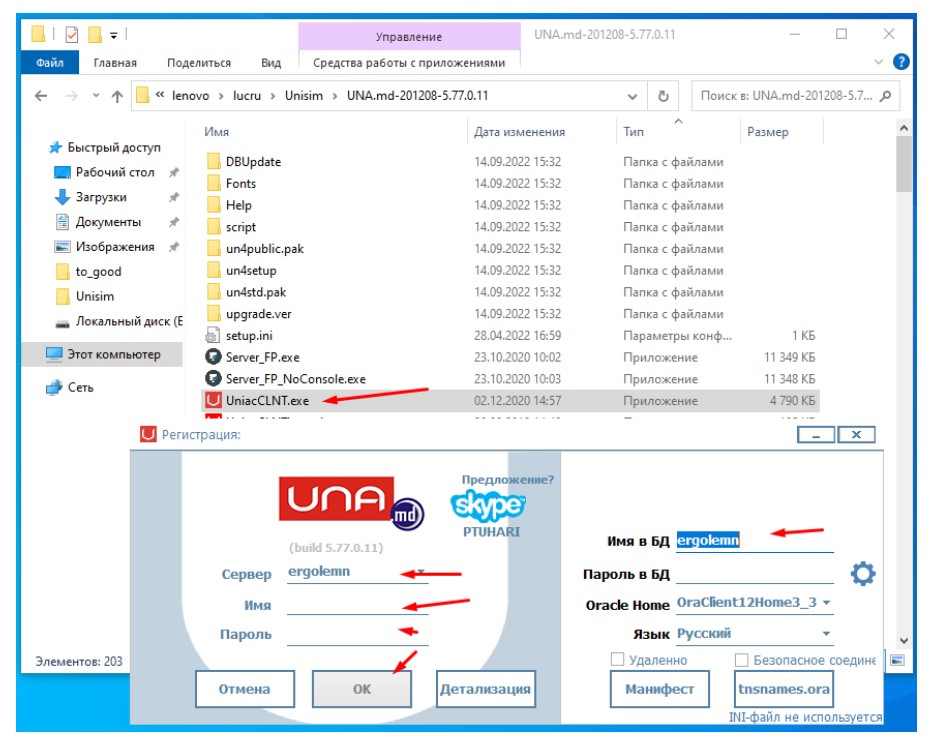
Extract it, check tnsnames, and enter the database connection details: